
Gutter guide
Install it, add your comics, and find your way around.
1. Install
Install Gutter on the computer that has your comics (or can reach them on a drive or network share). That computer needs to be on while you read; everything else — phones, tablets, other computers — just opens Gutter in a browser.
Windows
- Download Gutter-Setup.exe and run it.
- If Windows says it protected your PC, click More info → Run anyway.
- Keep Start Gutter when I sign in ticked so your library is always available.
- When Windows asks about the firewall, allow Gutter on private networks — that's what lets your phone and tablet reach it.
Gutter runs quietly in the background. Open it any time from the Start menu (Gutter); stop it with Stop Gutter.
Mac
- Download the Mac app (Apple silicon, macOS 12 or later; Intel Macs can use
Docker), open the
.dmgand drag Gutter to Applications. - Open Gutter from Applications. The first time, macOS says "Gutter" Not Opened — Apple could not verify…
because Gutter isn't signed with an Apple developer certificate yet. To allow it (you only do this once):
- Click Done — not Move to Trash.
- Open System Settings → Privacy & Security and scroll down to the Security section.
- Next to "Gutter" was blocked to protect your Mac, click Open Anyway.
- Confirm with your password or Touch ID, then click Open Anyway once more.
xattr -dr com.apple.quarantine /Applications/Gutter.appdoes the same thing. After an update you may need to allow it again. - Gutter opens in your browser and adds a G to the menu bar (top right). There's no Dock icon — it's a server. The menu has Open Gutter, Start at login and Quit Gutter.
- If your comics are on an external drive, macOS asks whether Gutter may use it — click Allow (or see Mac can't read my drive).
Closing the browser tab — or an installed Gutter web app — doesn't stop Gutter. It keeps running for your other devices. Use the G menu to open or quit it.
Docker (NAS, home server, Mac with Docker)
docker run -d --name gutter --restart unless-stopped -p 8085:8085 \
  -v /path/to/comics:/comics \
  -v /path/to/manga:/manga \
  -v gutter-data:/data \
ghcr.io/zombiex5000/gutter:latest- Inside Docker, Gutter sees your folders as
/comicsand/manga— use exactly those (lowercase) in Settings → Libraries. Leave out the manga line if you don't have any. - Add
:roafter a folder (/path/to/comics:/comics:ro) if you want Gutter to only read it. - Port 8085 taken by another app? Change the left side:
-p 8095:8085and open port 8095 instead. - Docker Desktop on a Mac with an external drive: allow Docker in Privacy & Security → Files & Folders.
- Update:
docker pull ghcr.io/zombiex5000/gutter:latest, then remove and re-run the container — yourgutter-datavolume keeps everything.
Linux
tar -xzf Gutter-linux-x64.tar.gz
./gutter/Gutter
Then open http://localhost:8085. The README.txt inside shows how to start it automatically with systemd.
2. First steps
- Add your folders. In Settings → Libraries, click + Add library, use Browse… to pick your comics folder, and set its type to Comics. Add a manga folder with type Manga. Click Save settings.
- Let it scan. Gutter reads every file once to find titles, numbers and covers. A big library takes a while the first time — titles appear as it goes, and the progress shows top right and in Settings → Scanning.
- Check publishers. Comics are grouped under the nearest publisher folder (
Comics/DC/…). Well-known publishers are recognised; tick any others under Settings → Publisher folders.
New files are picked up within seconds. Added something and want to see it right now? Click ⤓ Scan for new files on Home, or ⟳ Refresh.
3. Finding your way around
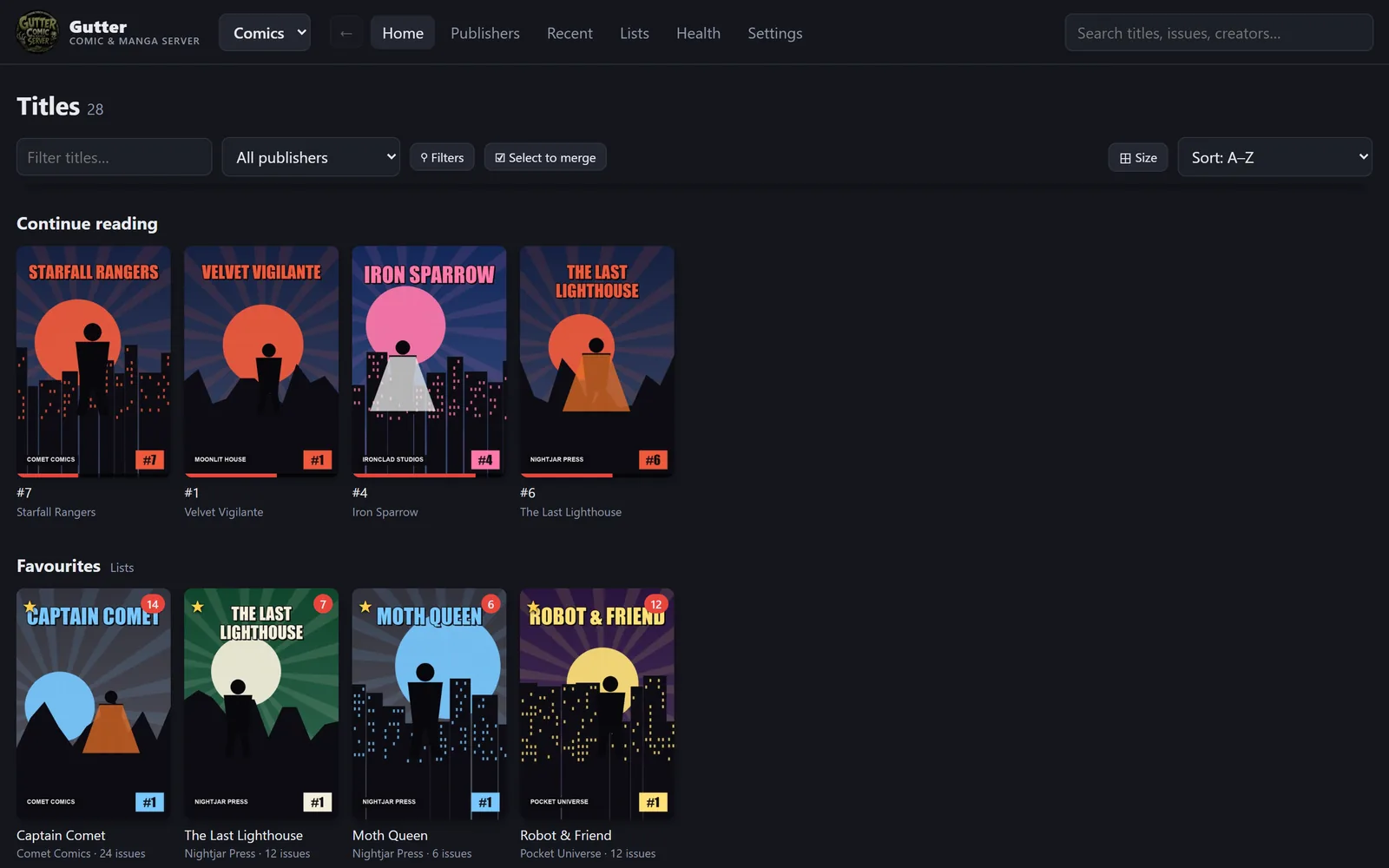
- Comics / Manga
- The switch at the top left changes collections. Manga only appears once you've added a manga folder.
- Home
- Continue reading, your favorites, then every title. Filter by name or publisher, use ⚲ Filters (unread, in progress, year, writer, artist), sort, change the cover size, or jump with the A–Z bar on the right.
- Publishers
- One shelf per publisher, with their titles inside (comics only).
- Recent
- Recently updated titles and recently added issues.
- Lists
- Your favorites and reading lists — your own order of issues, like an event or crossover.
- Health
- Damaged files, possible duplicates, titles without a cover, and empty folders (admins).
- Settings
- Libraries, publishers, accounts, remote access, backups, updates and more.
- A title's page
- Read or continue, ☆ Favorite, + Add to list, mark all read, rename, merge titles, change the poster, find a summary, open its folder (on the computer running Gutter) or remove it.
- ⋯ on a cover
- The same options without opening the title — handy for fixing posters or merging while you browse.
4. Reading
- Tap or click the middle of a page to show the controls; tap the sides to turn pages.
- Reading mode: left-to-right, right-to-left (manga) or webtoon, each paged or continuous. Gutter remembers your choice per title.
- Pages: one page, two pages, or two when the screen is wide. Covers and double-page art stay whole.
- Keyboard: ← → turn pages, Space for next, F for full screen, Esc to close.
- Your place is saved, and the next issue is one tap away at the end.
5. Phones, tablets and Panels
- Address: Settings → Open from other devices shows Gutter's address on your home network
(like
http://192.168.0.20:8085). Open it on any device at home. - Install it like an app: iPhone/iPad — Share → Add to Home Screen. Android — ⋮ → Install app. Chrome or Edge on a computer — the install icon in the address bar.
- Panels and other OPDS readers: add an OPDS connection to the same address with
/opdson the end. With accounts turned on, enter your Gutter username and password. - Tachimanga, Mihon and other Tachiyomi-style apps: these apps get their libraries through extensions, and
Gutter works with their Komga extension. Install that extension (Tachimanga: Browse → Extensions), open its settings and enter:
- Address: Gutter's address, like
http://192.168.0.20:8085, or your remote access address to read away from home. The home address starts withhttp://, nothttps://. Leave off any slash at the end. - Username and password: your Gutter account. If accounts are turned off, type anything in both.
/library/comicsor/library/manga(your library's name) to the address, one per Komga extension. Settings → Open from other devices lists them.
Komga is a separate open-source comic server. Gutter isn't affiliated with or endorsed by Komga; it answers the same requests so that apps built for Komga can read from Gutter too. - Address: Gutter's address, like
6. Accounts Pro
Out of the box anyone on your network can use Gutter. With Gutter Pro, you can give everyone their own reading progress, favorites and lists — and keep strangers out: go to Settings → Accounts → Create admin account, then add an account for each person. Admins can change the library and settings; everyone else can browse and read.
7. Gutter Pro: remote access and more Pro
Paste your key in Settings → Gutter Pro. Pro includes:
- Remote access — read away from home over HTTPS, no VPN:
- Turn on accounts first.
- Sign in at duckdns.org, add a name and copy your token.
- Enter both in Settings → Remote access and turn it on. Gutter opens a port on your router, gets a certificate, and shows your address when all checks are green.
- Optional: use your own domain (like
comics.example.com) — the settings show the two DNS records to add.
- Covers and summaries online from Comic Vine (add your free API key in Settings), MangaDex, AniList, MangaUpdates, MangaBaka and Wikipedia.
- Library health, reading lists and automatic daily backups.
- An address for each library, so reader apps like Tachimanga can keep comics and manga apart.
8. Updates and backups
- Updates: Gutter checks once a day and shows admins a banner when a new version is out, with how to update. Your library, settings and key are always kept. (Settings → Updates to check now or turn it off.)
- Backups: Settings → Backup & restore downloads a backup of your progress, names, posters, lists and settings, and can restore one. Your comic files are never part of it — they stay where they are.
9. Troubleshooting
- Gutter opened a different app
- Another program used Gutter's port. Current versions move to the next free port by themselves — check Settings → Open from other devices for the address.
- “Library folder not found”
- Check the path in Settings → Libraries. On Linux, NAS and Docker, capitals matter —
/Comicsisn't/comics; Gutter offers a one-click fix when it spots this. - Mac can't read my drive
- System Settings → Privacy & Security → Files & Folders → Gutter → turn on Removable Volumes (or add Gutter under Full Disk Access), then quit and reopen Gutter.
- Nothing shows on Home
- Check the Comics/Manga switch, and give a big first scan a few minutes — titles appear as it goes. Click ⟳ Refresh to see the latest.
- Some files “couldn't be read”
- Usually unfinished downloads (Gutter says when a file is all zeros). Re-download them. Settings → Scanning can export the list.
- Other devices can't connect
- Use the address from Settings (not
localhost), check the device is on the same network, and on Windows allow Gutter through the firewall on private networks. - Still stuck?
- Email support@zombiex5000.com — include what you see and which system you're on.
10. Where Gutter keeps its files
| Library database, settings, backups and log | The app | |
|---|---|---|
| Windows | %LOCALAPPDATA%\Gutter | %LOCALAPPDATA%\Programs\Gutter |
| Mac | ~/Library/Application Support/Gutter | /Applications/Gutter.app |
| Linux | ~/.local/share/gutter | wherever you unpacked it |
| Docker | the /data volume | the image |
Your comics are never moved or changed — unless you choose an option that says so, like moving files to the Recycle Bin.
To uninstall: Windows — Settings → Apps → Gutter. Mac — quit Gutter, drag it to the Trash (and remove the folder above to delete your
library data). Docker — remove the container and the gutter-data volume.